Photography
Adobe Lightroom Tips and Tricks 002. Exporting directly to Dropbox.
Here’s our second Lightroom Tip & Trick: How to quickly export images from Lightroom to Dropbox and share the link with your clients. Unless you LOVE burning CDs and DVDs you can really use this one. If you don’t have a Dropbox account, you can get one with 2GB of storage for FREE. Yes, you read that correctly. Now, you and I can get an additional 500MB of bonus space each if you choose to use this link which is also free.
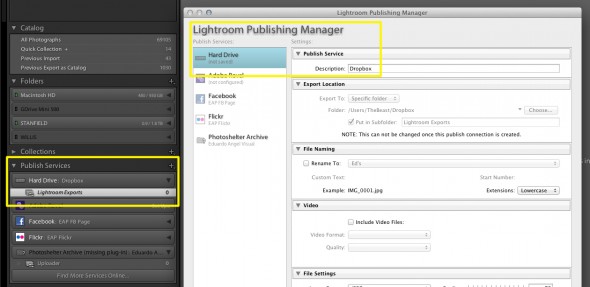
This is one way of doing it. Another way is to set up your Dropbox folder as a Hard Drive in Lightroom under your “Publish Services” (see image below).
Click to keep reading
I generally don’t recommend the “Publish Services” approach since different clients will require different sizes and specifications, and I personally prefer to keep my exports neatly organized on individual folders.
Dropbox has been taking important steps to become a serious photo-sharing service. The updated Android app allows users to quickly and easily share entire collections of photographs with friends and family.
“After selecting the images you’d like to share from the Photos tab, simply tap the button in the upper right to grab a public share link that you can send out. The recipients won’t need a Dropbox account to view all the photographs.”
If you don’t need all the Adobe Creative Cloud bells and whistles, consider their photography plan which includes Photoshop CC + Lightroom 5 and 20GB of cloud storage for only $9.99/month!
Got specific questions or want to learn more? We offer virtual one-on-one sessions to give you customized solutions and personalized training no matter where you are in the world. Sign up now!